PDF vs Word: When to Convert
Choose PDF or Word for the job you actually have, and convert only when the other format solves a real problem.
3 min readQuickPDFKit
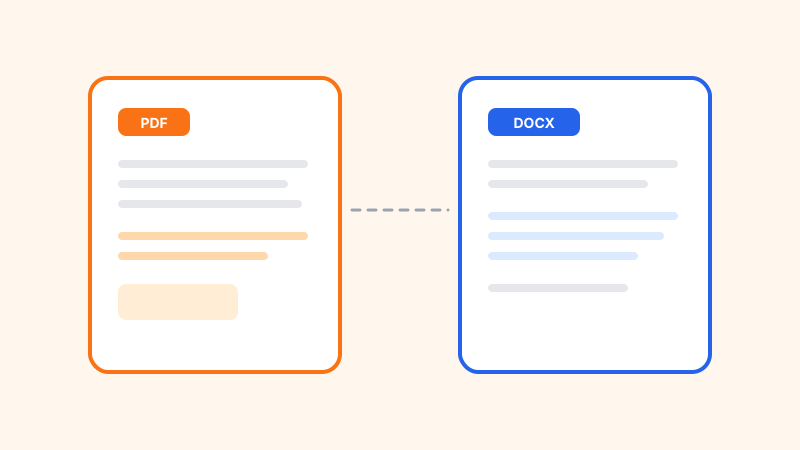
People convert out of habit. A PDF arrives, they turn it into Word, edit one line, and export a PDF that no longer matches the original. The two formats solve different problems. Pick the one that matches the job, then convert only for that reason. Both QuickPDFKit converters run in the browser, so the file is not uploaded for processing. Local conversion does not make a lossy conversion accurate. You still have to read the result.
Leave it as a PDF when the layout is the point
Invoices, signed agreements, forms, slide handouts, and anything you will print or archive belong in PDF. The reader sees the line breaks you approved. They may be able to copy text, but they are not invited to reflow the document. If you already have a finished PDF and you only need to send it, do not convert it. Conversion is a new file with new chances to drop a total, a page, or a signature image.
Use Word while the sentences are still changing
Drafts, policies under review, and letters you will revise next week are easier in a word processor. Comments, tracked changes, and styles belong there. A PDF is a poor place to rewrite a paragraph. If you wrote the document, the Word file is the source. Fix the typo there and export again. Round-tripping through PDF to repair one word usually costs more time than it saves, and it throws away layout you already had.
Convert PDF to Word only for the text
PDF to Word reads the text from each page and writes a Word file. It is the right move for a report you must edit when you do not have the source. It is the wrong move for a designed brochure. Images, complex tables, and special layouts are not preserved. Columns can come out as one stream of text. A scanned page with no text layer comes out empty or nearly empty, because there is no text to extract. If the preview looks sparse, the PDF is probably a picture of a page. Converting it will not create an article you can edit. You would need a transcription of that scan, which this tool does not do.
After a PDF-to-Word conversion, check names, dates, totals, and clause numbers before you trust the paragraphs around them. Check whether a heading is still a heading and whether a table is still a table or has become a line of words. If a signature image disappeared, the PDF was the record. Do not replace a signed PDF with the converted Word file.
Convert Word to PDF when you are done editing
Word to PDF turns the document into a PDF you can download locally, so someone can open it without Word. It is aimed at documents with ordinary formatting. Complex formatting, some images, headers, footers, and page numbers may not transfer cleanly. Read the preview before you download. Then open the PDF and compare it with the Word file: headings, page breaks, tables, and the last page. If the layout is contractual, compare page by page. A shifted clause is worse than sending the Word file to someone who can open it.
A simple rule
- Still editing the sentences: stay in Word, or convert from PDF once, edit, then export.
- Sending a finished copy: PDF. Keep the Word file as the source if another round of edits is likely.
- One typo in a file you wrote: fix the source. Do not convert the PDF back to Word for that.
- Need a smaller finished PDF: export first, then compress the PDF and keep the export if the smaller file is not actually smaller or no longer matches.
- Need a few pages, not a conversion: split or extract those pages instead of turning the whole document into Word.
A contract you would not upload to a random converter is a reasonable file to convert here. The download still remains on the computer. On a shared machine, move it out of the public Downloads folder when you are done, the same way you would after a merge or a split.
Tools for this guide
- PDF to Word
Extract the text of a PDF into a Word file. Images and complex layouts are not preserved.
- Word to PDF
Turn a Word document into a PDF in the browser. Check the preview before you send it.