How to Merge PDFs in Your Browser
Combine PDFs locally in your browser: set page order, keep only the pages you need, and check the file before you send it.
3 min readQuickPDFKit
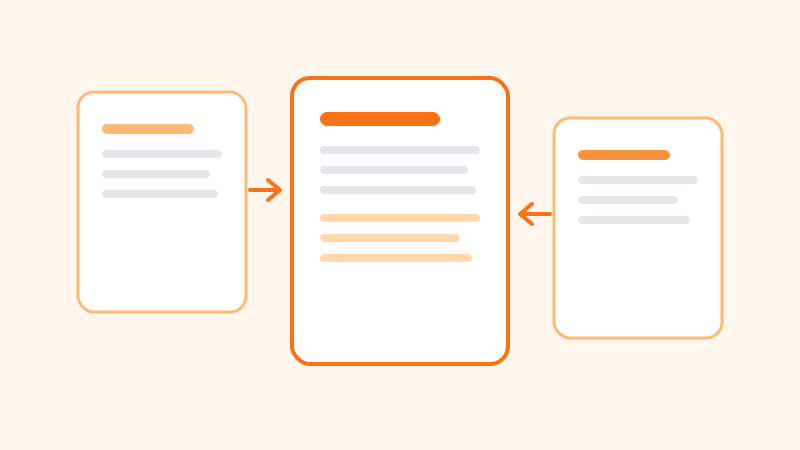
People merge PDFs for ordinary reasons: a cover letter in front of a contract, three months of invoices in one packet, or a scan plus the form that explains it. The usual shortcut is a website that asks you to upload every file. That is a poor trade when the pages name a client, a patient, or a price. The Merge PDF tool runs in the browser. You choose the files on your computer, the pages are copied into a new PDF in that tab, and the result downloads to your device. The file is not uploaded to QuickPDFKit for processing.
When a browser merge is the right move
Use it when you already trust the computer you are sitting at and you want one file that reads in a set order. Skip it when the original has to stay a signed legal record. Copying pages into a new PDF does not bring bookmarks, fillable form fields, or a digital signature with the page. If a signature has to remain valid, leave that file untouched and send it beside the merged packet, or sign again after the pages are final. If you still have the Word or spreadsheet source, fix the document there and export one PDF. Merging a pile of bad exports is slower than exporting once.
Put the pages in reading order
Open Merge PDF and add the files. Drag them into the order a reader should see. The list is the document. A cover letter dropped under the appendix is the most common mistake, and it is easier to fix before you click than after someone else has the file.
Each file can take a page range. Leave the range blank to include every page. A range such as 1-3,5 keeps only those pages, counting from 1. Use that when a scan has a blank trailing page, or when you need the signature page and not the draft behind it. Ranges are also the clean way to pull one section out as a single PDF. The split tool, described in the guide to splitting a large PDF, writes a separate file per page unless you group ranges on purpose.
Name the download before you merge. merged-document.pdf is hard to find on Thursday. A name like 2026-11-acme-packet.pdf tells you what it is. Name the source files before you drop them in, too. Scan_final and Scan_final2 are how the wrong draft gets included.
Check the download before you send it
Open the result. Read the first page, each place two files meet, and the last page. Add up the pages you meant to include and compare that count with the new file. Look at headers and footers. A merged packet often repeats a client name from a file you meant to leave out.
If a source was password protected and would not open, the merge did not quietly skip it in a safe way. Unlock it in a viewer you already trust, merge the unlocked copy, and protect the result again if the packet still needs a password. Do not email the unlocked copy. The sharing checklist covers where to send the password.
Size, photos, and shared computers
Merging does not shrink anything. Five 8 MB scans become a file near 40 MB, plus a little overhead from the new file. If a mailbox rejects it, compress the finished packet and keep the uncompressed merge until you have looked at the smaller file. Browser compression rewrites the PDF structure. It does not re-encode photos, so a stack of scans may barely change size. The compression guide explains how to tell a useful result from a file you should discard. If the size will not move, split the packet or send a link from storage you control.
Photos mixed with PDFs do not need a separate conversion first. Merge PDF and images accepts both and still processes them locally. Drop the photos in the position where the reader should see them, not at the end by default.
On a shared or borrowed computer, the finished file sits in the browser download folder next to anything else that was saved there. Move it to a private folder and remove the copy you do not need. Closing the tab drops the in-memory file. It does not empty Downloads.
Tools for this guide
- Merge PDF
Combine PDFs in the order you choose, with an optional page range on each file.
- Merge PDF and images
Build one PDF from PDF files and photos without a separate conversion step.