Compress a PDF Without Uploading It
Shrink a PDF in your browser, see what actually gets smaller, and keep the original when the rewrite does not help.
3 min readQuickPDFKit
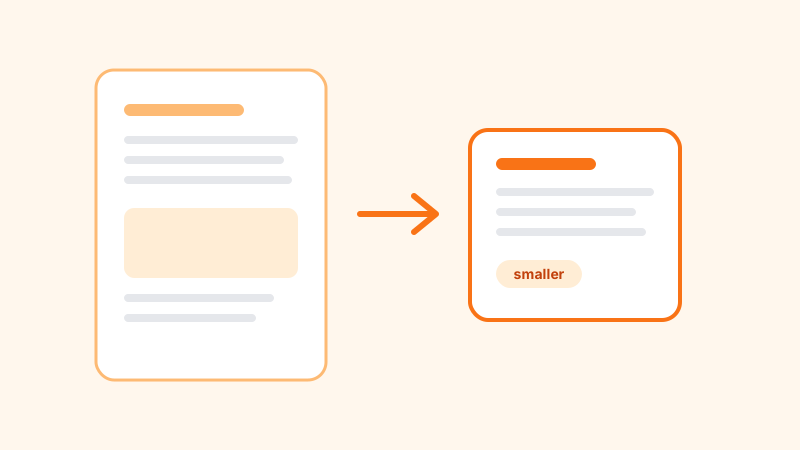
A lot of compress-PDF sites upload the file, recompress the pictures on a server, and hand you a link. That can shrink a photo-heavy scan by a wide margin. It also means the document left your computer. QuickPDFKit compresses in the browser. You pick the file, the tab rewrites it, and the result downloads locally. The PDF is not uploaded to QuickPDFKit for processing. Treat the size change as something you measure, not as a promise.
What gets smaller, and what does not
Compress PDF rebuilds the document and saves it with object streams, which packs the file's internal objects more tightly. That helps a PDF that was exported with loose structure. It does not resample the photos or scans embedded in the pages. A 20 MB contract scan is large because of the images, not because of the wrapper around them. Rewrapping it will not turn those images into smaller pictures.
Hyper Compress PDF adds a choice. Light clears the title, author, subject, keywords, producer, and creator fields and leaves the structure alone. Recommended also rewrites the file with object streams. Use Light when you only want the document info gone, and Recommended when you also want a tighter file. The page shows the original size and the new size. If the tool says the PDF is already optimized, or the new file is the same size or larger, keep the original. A larger download is a signal to stop, not a file to send.
A practical pass
- Open the original and note the page count, a heading, and one page that contains a picture or a fine line. You need something to compare.
- Choose Compress PDF for a straightforward rebuild, or Hyper Compress PDF if you also want the document info cleared.
- Select the file from your device. The word upload on the page means choosing a local file. It does not send the PDF to a QuickPDFKit server.
- Download the result and read the sizes on the page before you close it. Write down the reduction if there is one.
- Open the new file. Check the page count, the page you flagged, and the last page. Select a sentence if the source had real text, and confirm it is still text.
Keep the original until the new file earns it
Do not delete the source in the same minute you download the compressed copy. Three checks decide it. The page count matches. The pages you sampled still look right. The new file is actually smaller. If any of those fail, discard the new file and send or archive the original.
Clearing metadata is permanent in the copy you just made. That is useful when the author field names a staff member you do not want in a client packet. It is a mistake if you still need that title or author on your own archive. Run the hyper tool on a copy. The sharing checklist puts metadata in the wider list of things to review before a file goes out.
When shrinking is the wrong goal
Mailboxes often stop at 10 MB or 25 MB. If a scan will not shrink, the limit is the pictures, and another pass through the same tool will not change that. Split the file into parts and send the parts, or reduce the resolution in the app that created the scan. Splitting a large PDF covers how the page cuts work. Compressing after you merge is usually better than compressing each piece and then merging the compressed files, because you can judge one result.
Browser processing does not protect a file you then attach to an open email thread, and it does not remove the download from a shared computer. Close the tab and delete the copies in Downloads when you are finished. If the document is sensitive enough that a password matters, add that after you are happy with the size, and keep an unprotected original somewhere only you can open.
Tools for this guide
- Compress PDF
Rebuild a PDF locally with object streams and compare the new size with the original.
- Hyper Compress PDF
Clear document info and rewrite the file structure. Judge the result by the size you see.