How to Split a Large PDF Safely
Cut a large PDF into the pages you mean to share, without uploading it, and check the edges of every piece.
3 min readQuickPDFKit
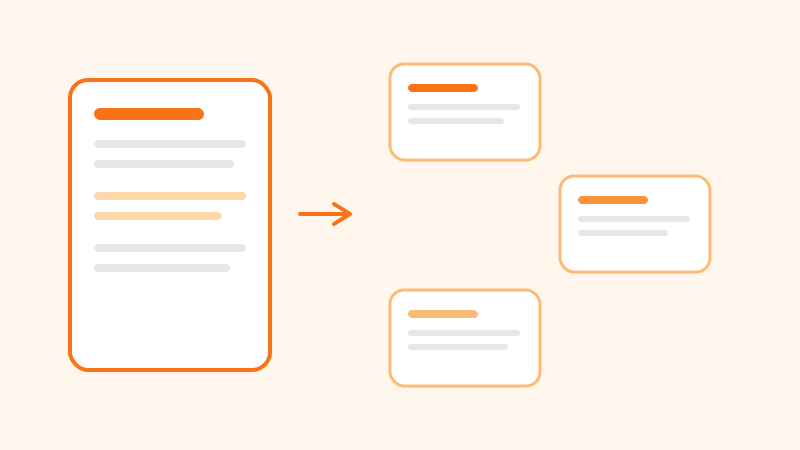
A 200-page export is awkward to email, awkward to review, and a poor file to hand to a site that wants the whole thing before it will cut out ten pages. Splitting in the browser keeps the document on the machine that already has it. You choose the pages, the tool builds new PDFs locally, and you download the pieces. Decide the cut before you open the tool. The wrong mode produces a folder of single pages when you wanted one excerpt, or one excerpt when you wanted a stack of receipts.
One smaller PDF from a few pages
A client asked for the signature page and the fee schedule. You do not need to send the other 80 pages, and you want those two sections in one file. Use Merge PDF with a single source and a page range such as 4-6 or 2,14-16. Leave every other file out. The range keeps those pages, in order, in one download. That is the reliable way to extract a section without splitting it into one file per page.
One file per page
Split PDF is built for separate files. Select the pages you want, or switch to individual mode for every page. Each chosen page downloads on its own, named with its page number. A custom range without a vertical bar does the same: 1-3 becomes three single-page PDFs, not one three-page file. That is what you want for a packet of scanned receipts. It is a mess if you wanted a chapter. Allow the browser to download multiple files when it asks. Name and file the downloads immediately. Fifty files called page-1.pdf will not stay organized.
Several multi-page files, or equal parts
When you know the sections, use the custom range and separate groups with a vertical bar. The placeholder on the tool shows the pattern: 1-3 | 4-6 creates two files, one for each group. Check the thumbnails against those numbers before you start. A range that is off by one page is enough to send the wrong exhibit.
A mailbox that rejects anything over 10 MB, and a PDF that will not compress because it is mostly images, is a job for Split PDF into parts. You choose how many parts. The tool divides the page count as evenly as it can. It does not aim at a file size. A part full of photos can still be over the limit while a part full of text is tiny. Check the size of each download. If one part is still too large, split that part again or cut by a range you choose.
Checks that matter more than the click
- Note the original page count. After the split, the pieces should account for the pages you meant to include, not necessarily every page.
- Read the first and last page of each piece. Splits fail at the boundary: the last page of part 1 repeated, or the first page of part 2 missing.
- Do not split a password-protected file until you can open it. If the tool cannot read the PDF, forcing another tool is not a workaround.
- Large files use memory in the tab. Close other heavy tabs first. If the browser stalls, split a smaller range instead of the whole book in one pass.
- Splitting is not redaction. A page you left out is absent, which is what you want. Text on a page you included is still there, including a header that names the client. Read headers and footers before you call something a small excerpt.
The new files land in Downloads. On a shared computer, move them to a private folder and remove the copies you do not need. If the piece is still sensitive, protect it or watermark it after the split, using the steps in the sharing checklist. Keep the full original. A forgotten password on a split piece is not recoverable from the browser tool.
Leave a signed agreement whole. Sending only the signature page without the terms is how disputes start. Split for convenience, and keep the full file as the copy of record. If you later need the pieces back together, merge them in order and check the joins.
Tools for this guide
- Split PDF
Save selected pages as separate files, or group ranges into multi-page PDFs.
- Split PDF into parts
Divide the whole document into a number of pieces by page count.
- Merge PDF
Pull one page range, such as 4-6, into a single smaller PDF.